
MakeItYapTTS support
Let’s get you
back to creating.
Activate your purchase, restore your licence, or find a quick answer. Your next voiceover can wait a moment.
Your licence, back where it belongs
Already have a licence?
Use your saved purchase ID to restore lifetime access after reinstalling Windows or moving to a replacement computer.
Open Lifetime access
In MakeItYapTTS, click the trial or lifetime-access button at the top of the app. It shows Purchase now while you’re on the trial.
Enter your saved purchase ID
Expand Restore a purchase and paste the ID you saved from your original installation. It starts with tts_, followed by 32 characters.
Select Verify and restore
Connect to the internet for this check. Once the app shows Lifetime access activated, you’re ready to create again.
Moving to a new PC? One licence covers one computer at a time. Remove MakeItYapTTS from the previous computer before transferring. If that computer no longer works, contact support for help.
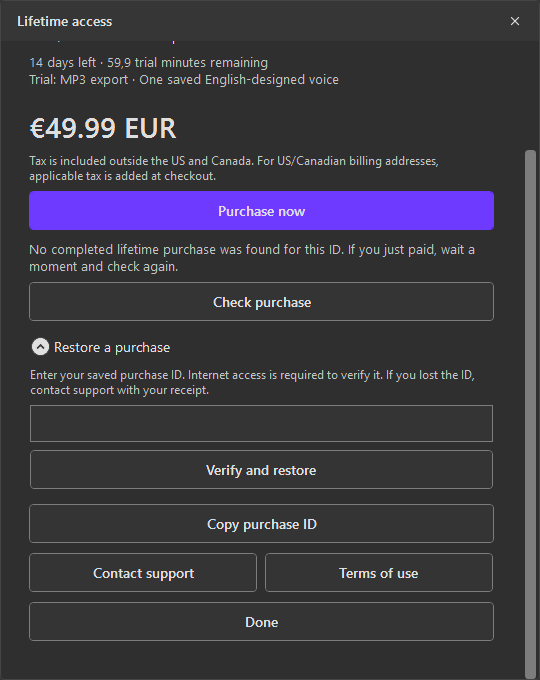
View full-size screenshot ↗
Just made it yours?
Your purchase activates automatically.
After checkout, MakeItYapTTS checks your purchase automatically. Your purchase ID is available inside the app. Keep it with your receipt for future recovery; there’s no separate key to type for your first activation.
Return to MakeItYapTTS
Switch back to the app on the computer you purchased from. Stay connected to the internet so MakeItYapTTS can check the purchase automatically.
Look for your lifetime access
Once the purchase is verified, the app shows Lifetime access activated and removes the trial limits.
Save your purchase ID
Open Lifetime access and click Copy purchase ID. Save it somewhere safe for recovery, alongside your checkout receipt.
Still seeing the trial? Wait a moment, then open Lifetime access and click Check purchase to retry manually. You don’t need to buy another licence.
Quick answers
A little clarity.
The essentials about your purchase, your computer, and your creations.
Where do I find my purchase ID?
Open Lifetime access in MakeItYapTTS and click Copy purchase ID. The ID starts with tts_ and has 32 characters after that prefix. Keep a copy somewhere safe.
Use the purchase ID associated with your completed purchase. When restoring, enter the purchase ID itself, rather than the payment receipt or order number.
I’ve lost my purchase ID. What now?
If your activated installation still opens, use Copy purchase ID there. If you still can’t find it, email support@makeityap.com with your receipt and purchase details so we can help locate your purchase.
Keep your purchase ID private. Don’t include it in public screenshots or posts.
I paid, but the app still shows the trial.
Activation normally happens automatically when you return to the app while connected to the internet. If you just paid, allow a moment for the payment to register. If the trial still appears, open Lifetime access and click Check purchase to retry manually.
If you’re using a new installation with a different ID, use Restore a purchase with your original saved ID instead. If the issue continues, contact support with your receipt and the exact message shown.
Why can’t my purchase be verified?
Check your internet connection, finish or cancel any recording currently being generated, and try again. When restoring, paste the complete original purchase ID, including tts_.
If the app says no completed purchase was found, check that payment completed and that you’re using the ID from the app you purchased with. Contact support if it still can’t be found.
Can I move my licence to another computer?
Yes. One licence covers one computer at a time. Remove MakeItYapTTS from your previous computer, then follow the restore instructions on the replacement. If your previous computer no longer works, contact support for assistance.
Do I need to stay connected to the internet?
Internet access is needed to complete checkout and verify or restore a purchase. After successful activation, the app stores your access locally and speech generation can work offline. There is no recurring online renewal check in the current Windows application.
Does lifetime access expire? Are updates included?
Your one-time purchase removes the trial limits from your purchased major version with no expiry date, subscription, or renewal fee. Updates within that major version are included. Future major versions may be sold separately; your existing version remains yours to use under the licence terms.
Can I use the audio in paid or monetised projects?
Yes. Audio generated with the paid version can be used in monetised YouTube videos, podcasts, advertising, and client projects, subject to your rights in the content and applicable third-party licences. The trial is for personal evaluation. See the commercial use terms.
How do I request a refund?
You have a 14-day money-back guarantee after purchase. Email support@makeityap.com with your purchase details. A refund ends the paid application licence. Your statutory consumer rights are separate and remain unchanged. Read the refund terms.
Where can I check the Windows requirements?
MakeItYapTTS supports Windows 10/11 x64, with 16 GB RAM minimum and at least 30 GB free storage after extracting the package. A compatible NVIDIA CUDA graphics card is recommended; CPU processing is also available. See the full system requirements.
Still need a hand?
Tell us what happened, your Windows and app versions, and the exact error message. For purchase or recovery questions, include your receipt or purchase details.
Please don’t send passwords or full payment-card details.